Flow 1: Dictation
(Click, Talk, Done)
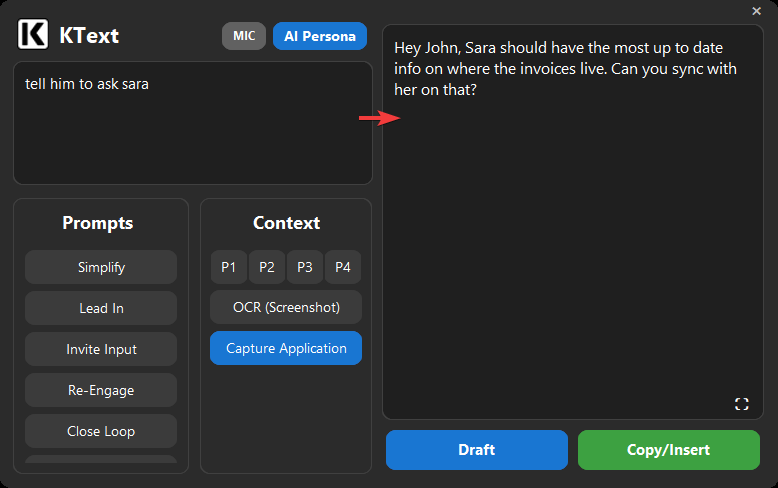
With your cursor in any textbox, left-click the floating KText icon and start talking—then click again to stop. The polished, finished message lands right where your cursor was. Double-click instead and skip talking entirely: KText reads what's on your screen and writes the full response for you.
Start with a complete draft, not a blank page. When you do talk, talk like a caveman—half-formed thoughts, fragments, raw intent—and get it back perfectly polished. No popup, no editing, no typing.
Flow 2: Rewrite a Selection
(Spellcheck, Evolved)
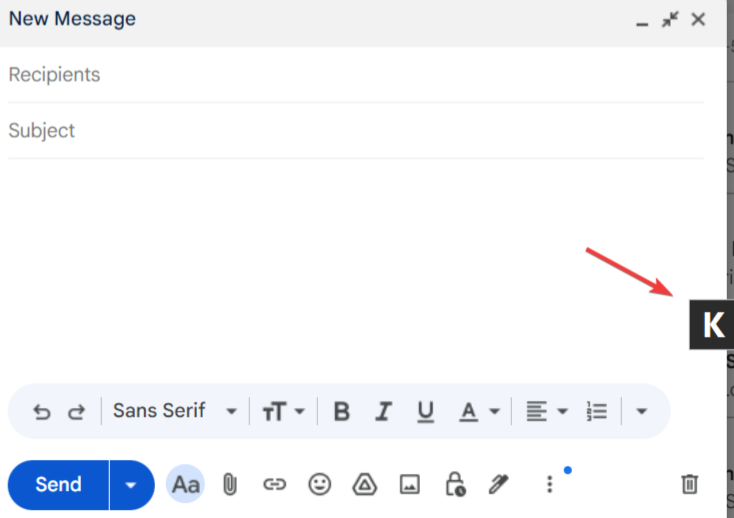
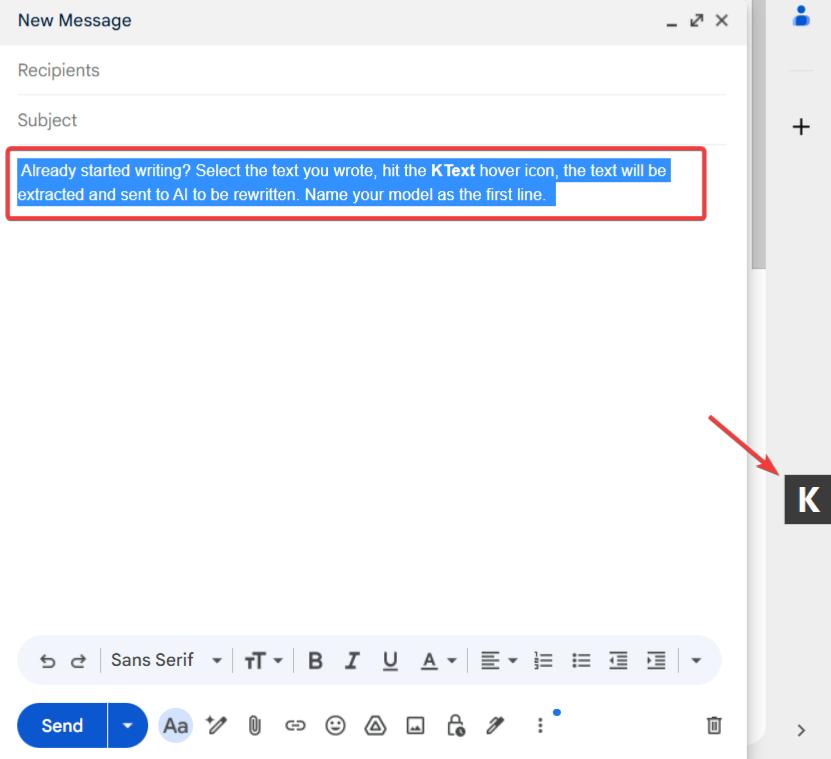
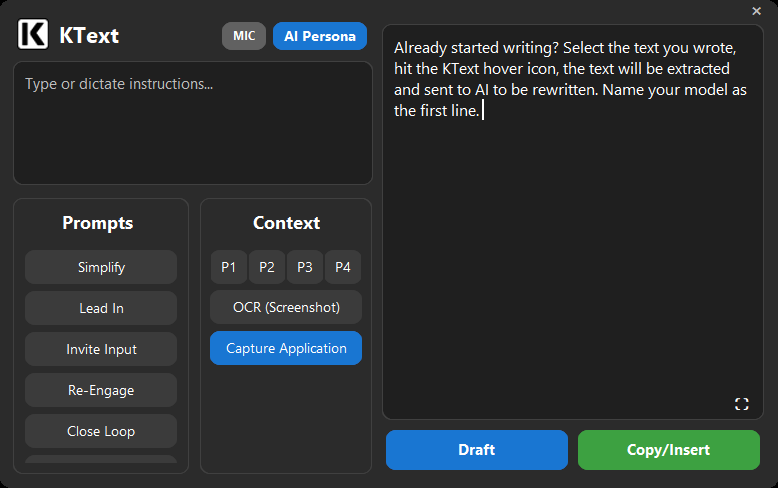
Highlight the text you want to fix, then hit the KText hover icon. Double-click to instantly clean it up with zero input from you—the new de facto spellcheck. Left-click and start talking to steer the rewrite with your voice. Right-click loads the selection into the panel for a fuller prompt-driven rework.
Let your thoughts flow—don't stress the first draft. Take shortcuts, be messy, be scattered. You think high-level, so write high-level. The beauty is how little you need to provide to get amazing results.
Flow 3: Reply for Me
(Zero Input)
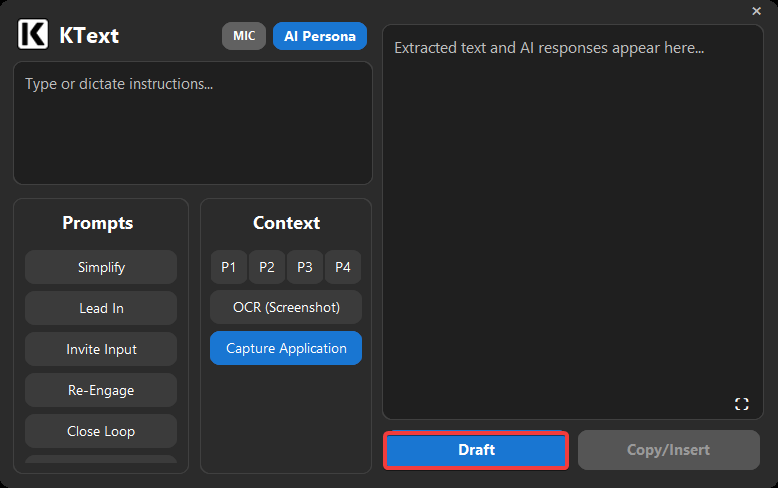
The panel-based sibling of Flow 1's double-click—same zero-input AI generation, but with rerolls and full controls in view. Click into any empty textbox—an email reply, a chat message, a ticket update—then right-click the floating KText icon to open the panel and hit Draft. Repeat to reroll.
KText uses what's on your screen to infer what your response needs to say. It doesn't need you to re-explain the thread.
Flow 4: Intent-First
(Type or Dictate)
The panel-based sibling of Flow 1's dictation—same intent-driven drafting, but with saved prompts, context slots, and Pro mode in the loop. Right-click the floating KText icon to open the panel, then type a rough intent or press the mic and speak it aloud.
Focus on the situation and the outcome you want, not the wording.
The assistant will take those raw thoughts and draft the full message for you.